
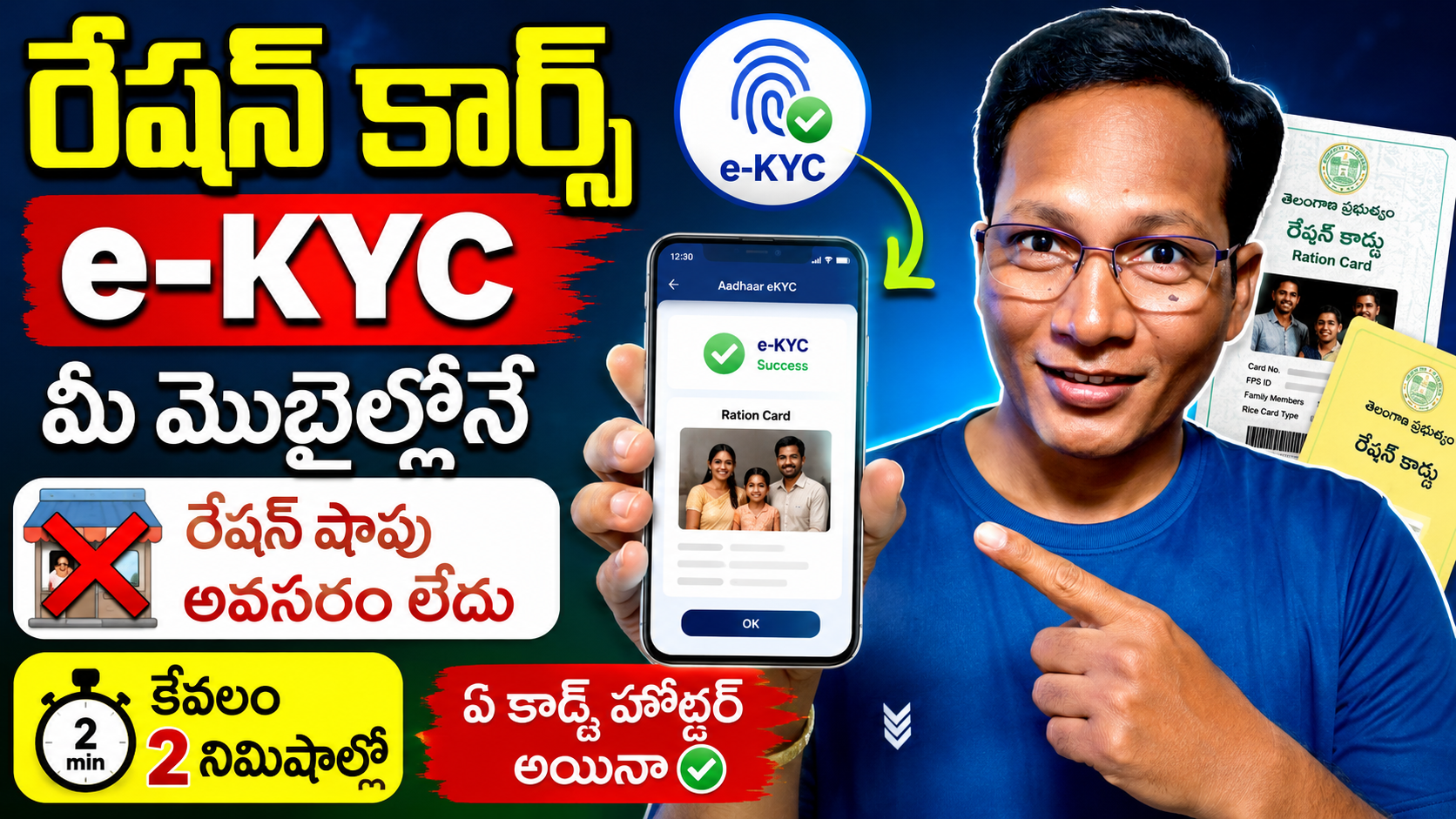
If you want to complete your ration card eKYC through
the Mera eKYC App but are experiencing issues like downloading, logging in, face capture, location, or
No Data Found , this article is for you. Here, you’ll find all the essential information about the Mera eKYC App 2026 in simple language.
The Mera eKYC App is an official mobile application developed by the National Informatics Center (NIC). It aims to simplify the Aadhaar-based face authentication eKYC process for ration card holders. With this app, beneficiaries can complete their verification through facial recognition alone, without the need for a fingerprint scanner
If you’re wondering
how to download the Mera eKYC app , first open the Google Play Store on your Android phone and search for “Mera eKYC.” If the app appears, install it.
If Mera eKYC App is not showing on Play Store , there could be several reasons behind it:
- Play Store server updates.
- Your phone’s Android version is out of date.
- The app is temporarily unavailable in your region.
- Play Store cache is corrupted.
In such a case, update Play Store, clear the cache and try again after some time.
If you want to know
how to do KYC with Mera eKYC App , then follow the easy steps given below
- Install Mera eKYC App.
- Enter your Aadhaar number.
- Enter the OTP received on the mobile number linked with Aadhaar.
- Start Face Authentication.
- Look straight at the camera and let your face be scanned properly.
- Your eKYC will be successful once the verification is complete.
If the app is showing a Technical Error , the possible reasons are:
- Weak internet connection.
- Server busy.
- Old version of the app.
- Necessary permissions are turned off in the mobile.
To resolve, update the app, restart the phone and try again after some time.
This problem often occurs due to the camera, lighting, or improper face recognition.
Fix login errors
- Stay in adequate light.
- Keep the camera lens clean.
- Keep your face completely in front of the camera.
- Scan with glasses, masks, or hats removed.
- Stay still and try again.
If No Data Found appears, it may mean that your ration card data is not yet updated on the server or the Aadhaar number is not linked.
App usage guide
- Recheck the Aadhaar number.
- Verify Ration Card Details.
- Try again after some time.
- If necessary, contact your Food and Civil Supplies Department.
Many users see Location Problem or Out of Boundary Error.
- Turn on the phone’s location.
- Go to App Permissions and set Location to While Using the App or Always Allow .
- Turn on High Accuracy Location Mode.
- Clear the app’s cache.
- After getting GPS signal, do eKYC again.
If the Select State option is not working, the possible reasons are:
Fix login errors
- State server temporarily unavailable.
- Old version of the app.
- Weak internet connection.
- Delay in data sync.
In such a case, update the app and try again after some time.
There are three options available to do Ration Card eKYC.
App usage guide
- Online: Mera eKYC App or from the PDS portal of the respective state.
- Mobile App: Through Aadhaar based Face Authentication.
- Offline: Visit the nearest fair price shop (ration dealer) and get biometric verification done through e-POS machine.
Download Mera eKYC Click Here
Aadhaar Face RD Click Here